User Guide
Learn how to create jobs, review results, configure settings, and export your work.
Workflow
- Create - Select input (image/PDF/folder) and configure job. See Creating Jobs
- Process - Monitor progress in Job Control
- Review - Correct recognition errors in a side-by-side interface. See Review Interface
- Export - Save as text, DOCX, or PDF. See Export Options
Main Interfaces
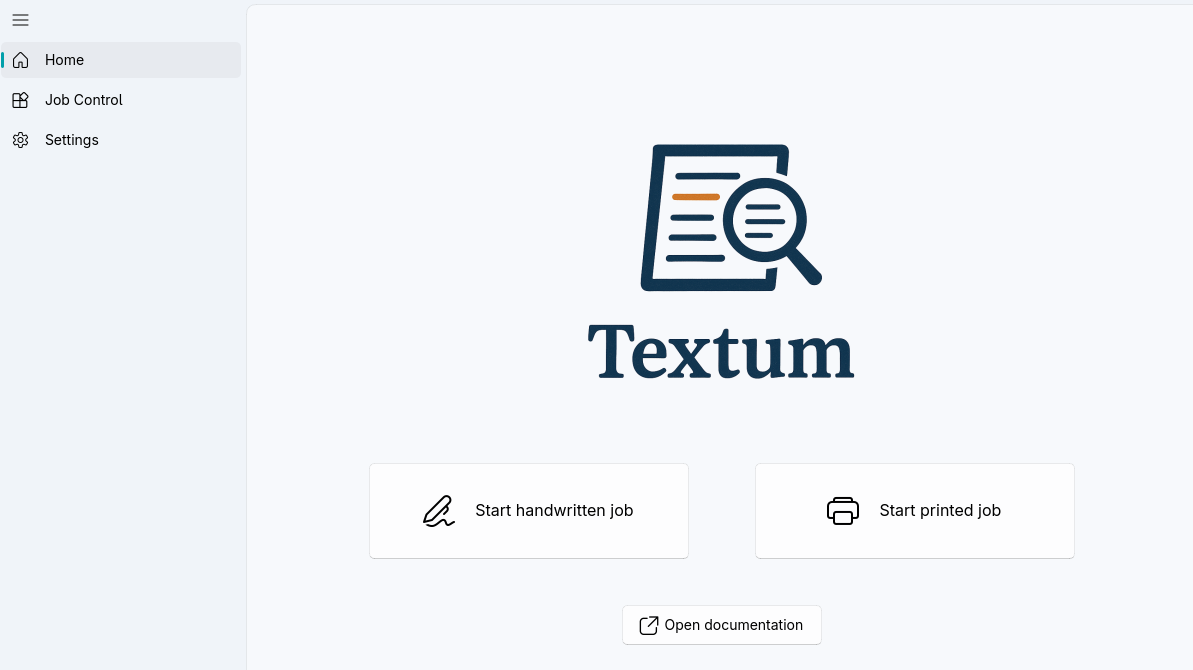
Home
Create new recognition jobs with configurable settings for printed or handwritten text. From this screen you choose the job type, select images or PDFs as input, and define options like language, rotation, and page splitting before processing starts. See Creating Jobs for detailed instructions.
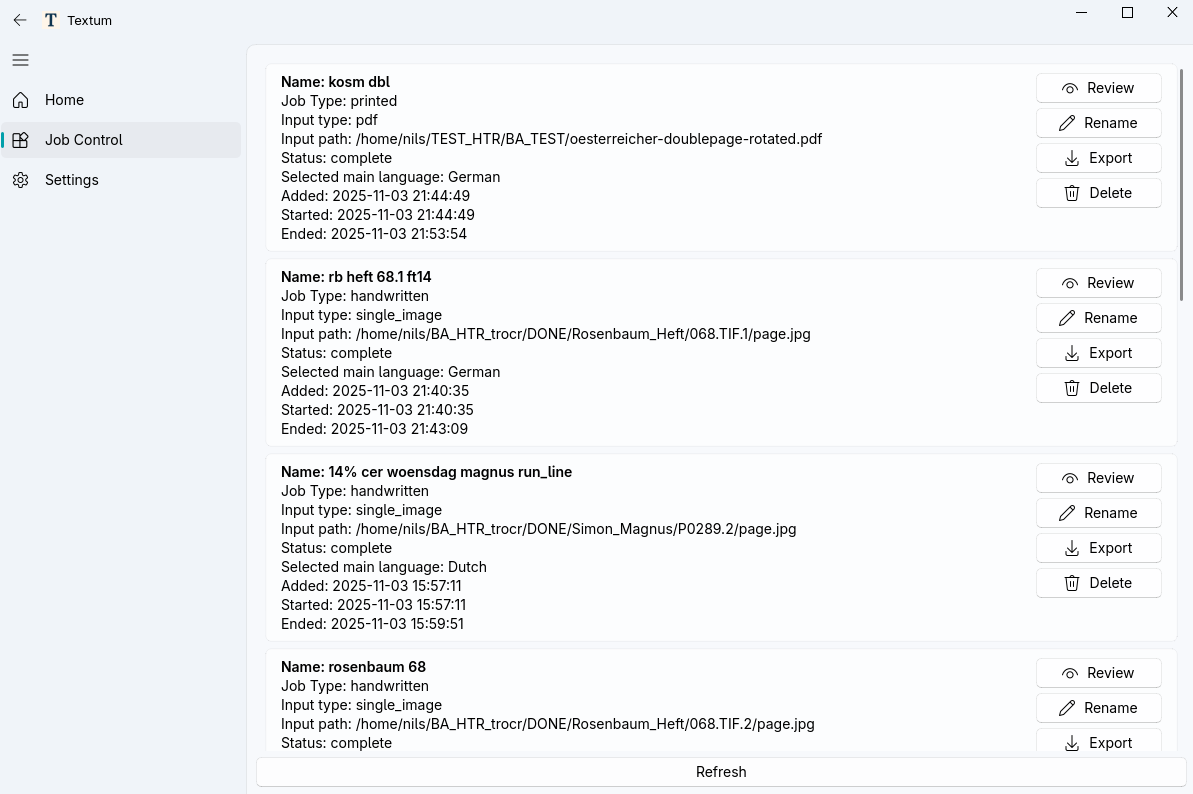
Job Control
Monitor and manage all jobs with status indicators and queue controls. This interface shows pending, running, failed, and completed jobs at a glance, and provides actions for review, rename, cancellation, and export. See Job Control for details.
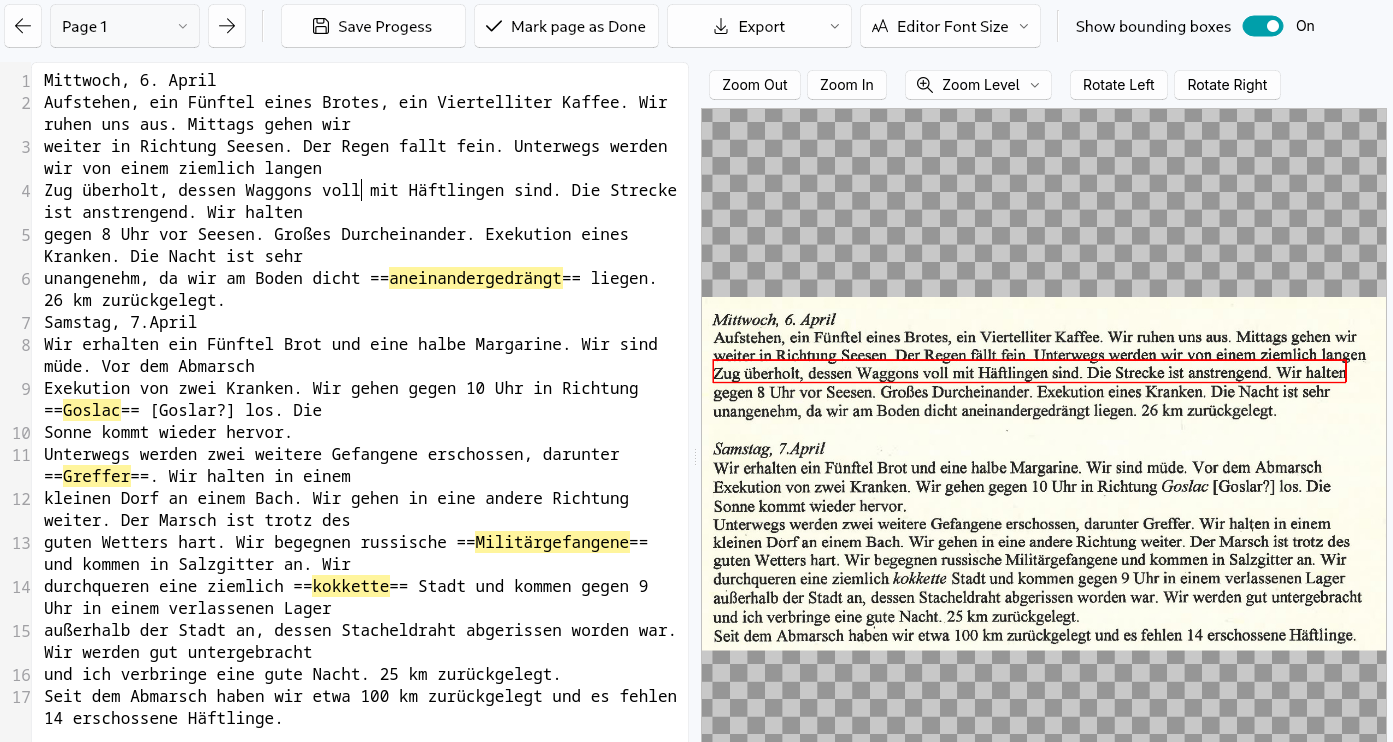
Review Interface
This is where you review and edit recognized text page by page. The source image and OCR result are shown side by side so you can quickly compare, correct mistakes, mark pages as done, and save progress as you work. See Review Interface for detailed guidance.
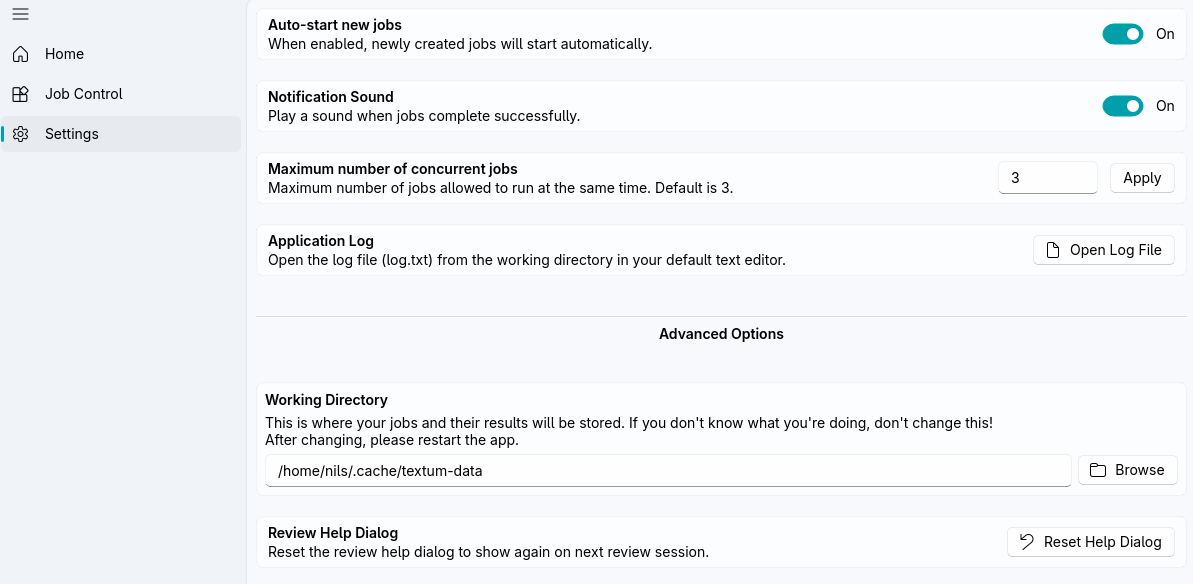
Settings
Configure auto-start, notifications, concurrent jobs, working directory, and other preferences. These options help adapt Textum to your hardware and workflow, whether you prioritize faster processing, quiet operation, or a specific project directory setup. See Settings for all available options.