Creating Jobs
Create and configure text recognition jobs. A job is a task that processes your input files (images or PDFs) to recognize text. Each job processes one set of input files and produces results you can review and export.
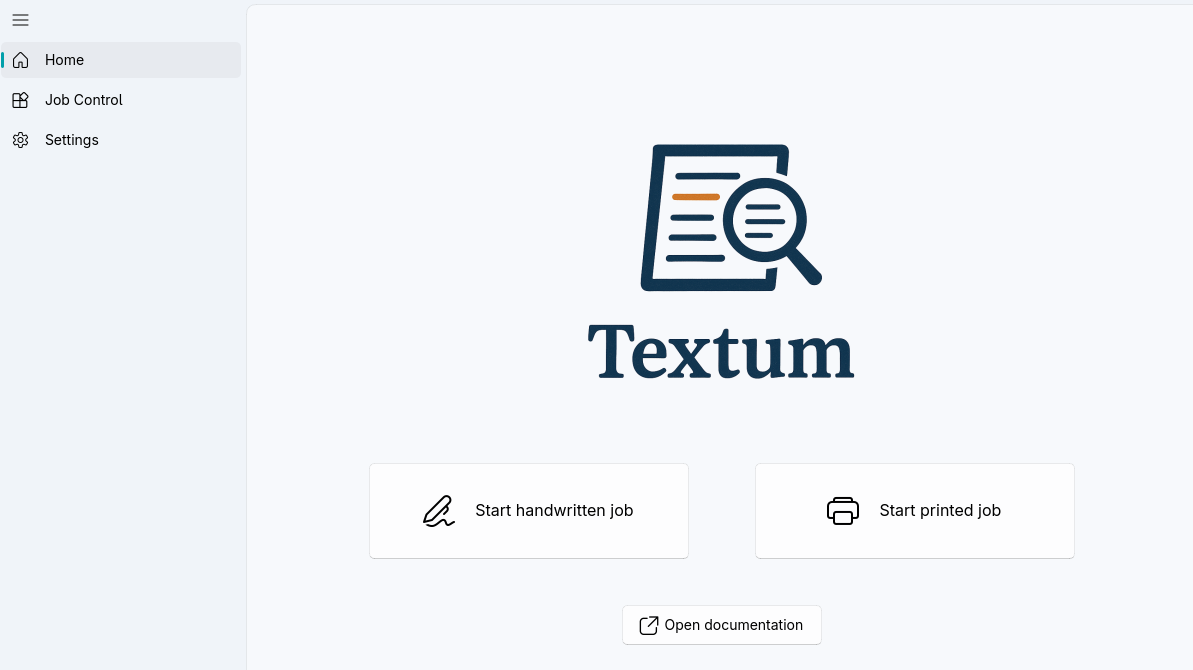
Starting a recognition Job
- Go to Home view
- Click
Start handwritten JoborStart printed Job - The Job configuration dialog opens
Input Selection
- Single Image - Single PNG, JPG, TIFF, WEBP files
- PDF - All pages in a PDF file
- Folder - All images in a folder of image files
Job Settings
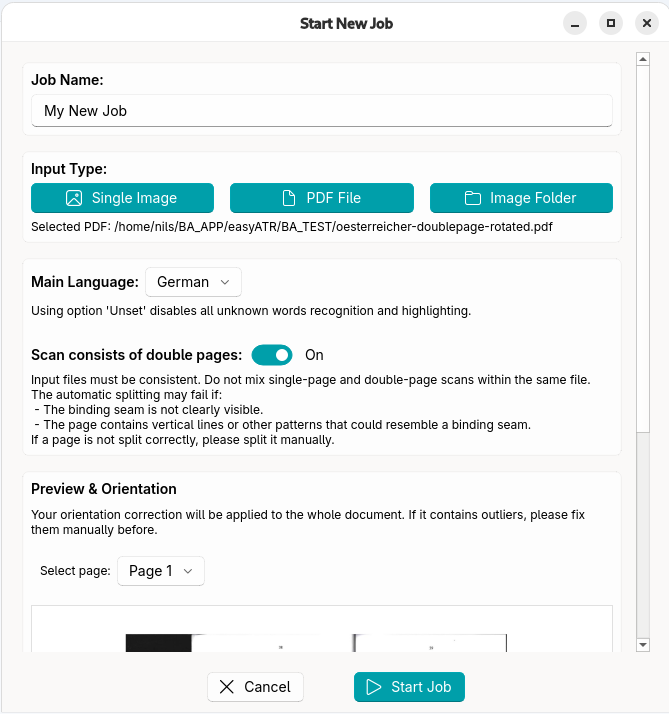
Job Name
Descriptive name to identify the job (defaults to current time and date)
Language
Select for spell checking:
- German (DE)
- English (EN)
- Dutch (NL)
- Unset - No spell checking
Unknown words will be highlighted in the Review interface.
Double Page Scan Splitting
If enabled, this option will try to detect a binding seam within each image and split it accordingly. Your input files must be consistent, i.e. all pages in the job's input have to be double page scans if this option is enabled.
The automatic splitting may fail if:
- The binding seam is not clearly visible
- The page contains vertical lines or other patterns that could resemble a binding seam
If a page is not split correctly, please split it manually
Double page splits are named like Page 1 (Left) and Page 1 (Right) in the Review interface.
Correct orientation
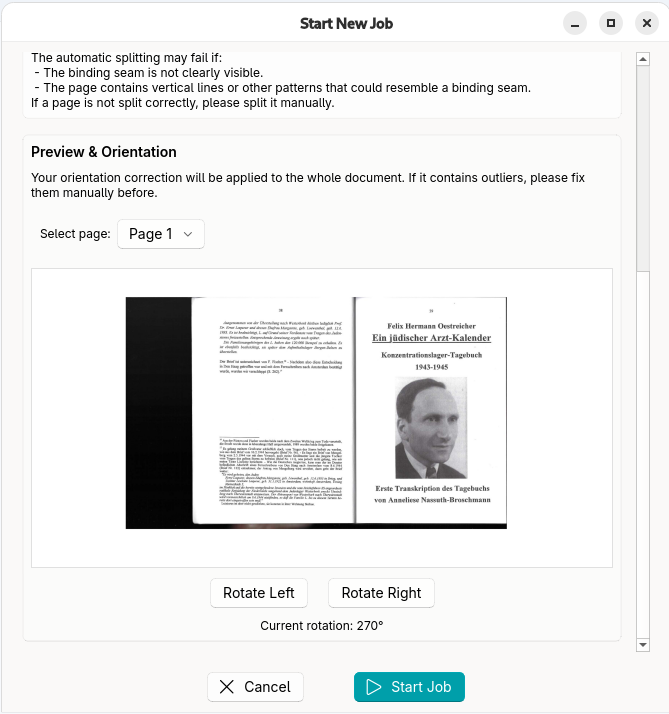
In the small preview window you can select an arbitrary page from your input, by default it displays the first page. However, in a book, for example, the first few pages are usually empty. If so select another page from the dropdown to use as a preview.
Now, please rotate the page correctly. Your selected rotation (0°, 90°, 180°, or 270°) will be applied to the whole input. This means your job input file(s) always need to have the same consistent orientation, e.g. it is not possible to only rotate one page.
After Creation
The Job appears in the Job Control view where you can monitor progress and access the Review when the job status is complete.
If the option Auto-start Jobs is enabled in settings (enabled by default), your job will start automatically. If this option is disabled, just go to the Job Control View and click Start on your job.
There is also a configurable limit on the number of concurrent jobs, if this limit is reached a newly created job will not be started automatically and also has to be started manually by you. See Job Control for more information.